
Eymistaken's HUD
A modular PvP HUD for Fabric — seven modules, a drag & drop editor, and a plugin API.
Visit the Official Website & User Guide
Module showcases, the Keystrokes Designer guide and the full API documentation live there.
Eymistaken's HUD gives you the competitive overlay of a modded client without the modded client. Everything is drawn client-side, placed exactly where you want it, and stored in a single config file you can share as a string of text.

Why this mod
| Everything is movable | Drag any module anywhere with a live in-game editor. Snapping, an optional grid, align & distribute tools, and per-element nudging. |
| Everything is themeable | Per-module color, scale, rainbow mode, background color + opacity, custom label text, text outline and five bundled fonts. |
| Nothing is bloated | Zero runtime GUI library dependencies. Client-side only — no server install, no mixin into gameplay logic. |
| Layouts are portable | Save named presets, auto-remember a layout per server, or export the whole HUD as a share code and paste it to a friend. |
| Extensible | A public API lets other mods register their own HUD modules, with their own settings tabs, and subscribe to combat events. |
Modules
CPS
Left and right click counters with a configurable separator and free-text prefixes/suffixes, so you can render
12 | 4, CPS: 12, or anything else you like.

Keystrokes
A fully custom keystroke display, not a fixed WASD block. The bundled Keystrokes Designer lets you draw your own layout: add any key or mouse button, resize it, drag its label independently, recolor individual keys, and pick a press animation (none, squish, ripple, or both). Any key can carry its own CPS counter.


Combo
A hit-streak counter with a heatmap: the number changes color as your streak climbs, and shakes at the top tier. Three difficulty curves decide where those tiers sit.
| Heatmap mode | Tier 1 | Tier 2 | Tier 3 (shake) |
|---|---|---|---|
| Easy | 3 hits | 5 hits | 7 hits |
| Medium (default) | 5 hits | 8 hits | 12 hits |
| Hard | 10 hits | 40 hits | 60 hits |
It also understands how you fight. Classic mode counts every swing; Modern mode respects the 1.9+ attack cooldown so spam clicking doesn't inflate your streak. You choose whether the combo breaks on any damage taken, whether it survives switching targets, and how long it lingers before timing out.

Reach
Shows the exact distance of your last hit, with decimals. Optionally filters to players only, and can stay on screen with a custom "no hit yet" label instead of disappearing.

Armor
Your armor, main hand and off hand as item icons with durability bars. Lay them out vertically or horizontally, draw them on hotbar-style slot backgrounds, print exact durability numbers, and flash a slot red when it takes damage. Every slot is an independently placeable element — you can scatter them around the screen individually if you want.

FPS & Ping
Lightweight performance readouts with custom label text, color, scale and background — for when you want the numbers without opening F3.

The layout editor
Press Right Shift in game to open the editor. Everything you see is the real HUD, live.
- Drag any module — or any individual armor slot — to place it exactly.
- Right-click an element for a context menu of its own settings, straight from the HUD.
- Multi-select two or more elements to unlock align left/center/right, align top/middle/bottom, and distribute horizontally/vertically.
- Snapping to other modules' edges, plus an optional pixel grid (4/8/16/32).
- Prevent Overlap keeps two modules from ever covering the same pixels.
- Right-click empty space for the global menu: settings, presets, server configs, share codes and a full layout reset.


The settings screen
A purpose-built settings screen — one page per module, split into tabs, with a search box that finds any setting by name, per-row descriptions and defaults, and a one-click reset on anything you've changed. It holds a single readable size at any Minecraft GUI Scale, and you can nudge that baseline from 50% to 200%.
Open it from ModMenu, or from the editor's global menu.


Presets, server configs & share codes
| Feature | What it does |
|---|---|
| Named presets | Save the entire HUD under a name and switch between them instantly. Stored as plain JSON in simplecps_presets/. |
| Per-server configs | Turn it on and your HUD is simply remembered per server. Join a server you've configured and its layout loads silently; edits there are saved back to it. Single-player shares one config. |
| Share codes | Export your whole HUD — or just a keystrokes layout — as an EYMHUD1-… string. Copy it, send it, paste it. Imports are fully validated before anything is applied, and a timestamped backup is taken first. |

Appearance
Five bundled fonts on top of vanilla — Inter, Rubik, JetBrains Mono, Bebas Neue and the enchanting-table font — applied only to HUD elements and this mod's own screens, never to chat or vanilla menus. Add a thin black outline instead of the vanilla drop shadow, and set color, scale, background and opacity per module.
(Still improving fonts. They are not perfect yet. Sorry.)
Installation
- Install Fabric Loader (0.18.4 or newer).
- Install Fabric API.
- Download Eymistaken's HUD and drop the
.jarinto your.minecraft/modsfolder.
ModMenu is optional and only adds a button to open the settings screen. There is no Cloth Config requirement — the settings screen is built into the mod.
Requirements: Minecraft 26.1–26.2 · Java 25 · Fabric · client-side only.
⚠ Updating from a version older than v1.0.8?
Delete your old
simplecps.jsonconfig file first to avoid layout issues and to pick up the newer defaults.
For developers
Third-party mods can register their own HUD modules through the eymistaken_hud entrypoint. A registered module gets a settings page, a slot in the drag & drop editor, and its state carried inside presets, server configs and share codes — for free.
public class MyPlugin implements EymistakenHudPlugin {
    @Override
    public void registerHudModules(HudModuleManager manager) {
        manager.registerModule(new MyHudModule());
    }

    @Override
    public void registerEvents(EymistakenHudEventBus bus) {
        bus.subscribe(ComboStreakEvent.class, event -> {
            if (event.level() >= 2) playHypeSound();
        });
    }
}
Modules can declare their own settings tabs, expose sliders/toggles/color pickers/text fields to the editor's right-click menu, and split into independently placeable sub-elements. Full documentation is on the official website.

A third-party module registered through the API — it gets its own settings page, its own tabs, and a slot in the editor, listed under PLUGINS in the sidebar.
Links
Licensed MIT.
How to Install Eymistaken's HUD (Mod)
Eymistaken's HUD by Eymistaken is verified for Fabric across Minecraft versions 1.21.10, 1.21.11, 1.21.5, 1.21.6, 1.21.7, 1.21.8, 1.21.9, 26.1 (latest release: 1.2.4, file size: 1.2 MB). Follow the steps below to install it safely from ModCraft.tv:
- Click the Download button above and select your Minecraft version (1.21.10, 1.21.11, 1.21.5, 1.21.6, 1.21.7, 1.21.8, 1.21.9, 26.1) and platform (Fabric).
- Make sure you have the compatible loader or environment installed for Fabric.
- Move the downloaded Eymistaken's HUD file into your Minecraft
.minecraft/modsfolder and launch the game.
All Versions
+ Add Version| Name | Game version | Platforms | Published | Downloads | Actions |
|---|---|---|---|---|---|
| 7d ago | 1 | ||||
| 1mo ago | 1 | ||||
| 2mo ago | 1 | ||||
| 2mo ago | 1 | ||||
| 2mo ago | 1 | ||||
| 2mo ago | 1 | ||||
| 3mo ago | 1 | ||||
| 3mo ago | 1 | ||||
| 3mo ago | 1 | ||||
| 4mo ago | 1 | ||||
| 5mo ago | 1 | ||||
| 5mo ago | 1 | ||||
| 5mo ago | 1 | ||||
| 6mo ago | 1 | ||||
| 6mo ago | 1 | ||||
| 7mo ago | 1 | ||||
| 7mo ago | 1 | ||||
| 8mo ago | 1 | ||||
| 8mo ago | 1 | ||||
| 8mo ago | 1 | ||||
| 8mo ago | 1 | ||||
| 8mo ago | 1 | ||||
| 8mo ago | 1 | ||||
| 8mo ago | 1 | ||||
| 8mo ago | 1 | ||||
| 9mo ago | 1 | ||||
| 9mo ago | 1 | ||||
| 9mo ago | 1 | ||||
| 9mo ago | 1 | ||||
| 9mo ago | 1 | ||||
| 9mo ago | 1 | ||||
| 9mo ago | 1 | ||||
| 9mo ago | 1 | ||||
| 9mo ago | 1 | ||||
| 9mo ago | 1 |


Full documentation for everything below: **https://eymistaken.github.io/Eymistaken-s-HUD-Website/**
## Place the armor HUD with nothing equipped
The armor HUD draws only what you wear and hold, so with an empty inventory it showed nothing in the HUD editor and there was nothing to grab and move. The editor now fills those slots with ghosts: a dark, sunken slot holding a gray copy of the diamond piece that belongs there, and the empty off-hand silhouette for the off hand. They are made from the textures of the active resource pack, so a pack that redraws diamond armor gets ghosts in its own style.
As soon as anything is worn or held, the editor shows only the real items, because that is what the HUD will look like in game. A slot you have detached from the group is placed on its own, so it keeps its ghost whenever it is empty. Outside the editor nothing changes and empty slots are not drawn.
> 
## Armor reacts to hits and warns before it breaks
The red flash on a damaged item is gone. In its place are four hit effects that play when a piece loses durability. **Hit Shake** knocks the item and lets it settle, **Hit Sparks** throws red sparks out of it, **Warning Corners** blinks red brackets around its slot twice, and **Chip Damage** keeps the durability the hit took on the bar in white for a moment before it drains away, so even a small loss is visible.
Below a threshold, an item now warns you that it is wearing out. **Warning Badge** puts a small red "!" on its corner that hops now and then, **Tremble** makes it grow and shiver, **Heartbeat** makes it beat, and **Red Pulse** breathes a red glow behind it. Each grows stronger and faster as the item nears breaking. Every motion is timed rather than random, so the same hit always plays the same way.
> 
All of them live on the new **EFFECTS** tab of the Armor HUD page in the settings screen, next to **STYLE**. Each has its own slider from 0 to 200%, where 0 turns it off, and several can run at once. **Low Durability At %** sets where the warnings start, 25% by default. **Hit Shake** and **Warning Badge** are on out of the box and the rest start at 0. While you are on that page the **PREVIEW** card takes a pretend hit every two seconds, so each slider can be judged as you move it.
The old **Damage Flash** toggle moved to the same tab as **Damage Effects** and now switches all four hit effects. Your existing setting carries over: if you had turned the flash off, the hit effects start off too.
> 
## Animations you put together yourself
Pressing a key can move it, paint it, or both, and you choose each independently.
A key can **Squish**, **Kick**, **Sink** or **Nudge** — and more than one at a time. Sink
and Nudge add together into a diagonal shift; Kick takes over from Squish when both are
on. Separately, a key can be painted by a **Ripple**, a **Sweep**, a **Cascade** through
its slices, a **Hold Ring** that travels the border while you keep the key down, an
- Edge Run** that circles it, or a plain **Glow**. Several fills can run at once and they
result.
One direction setting drives every fill you have on: **Right**, **Left**, **Up**,
- Down**, **Center Out**, **Edges In**, **Clockwise** or **Counter-Clockwise**. Each fill
running clockwise coexist under a single control. There is also a **Release Trail**,
which sends a fading outline outward at the moment you
...
Full documentation for everything below: **https://eymistaken.github.io/Eymistaken-s-HUD-Website/**
## See a module while you set it up
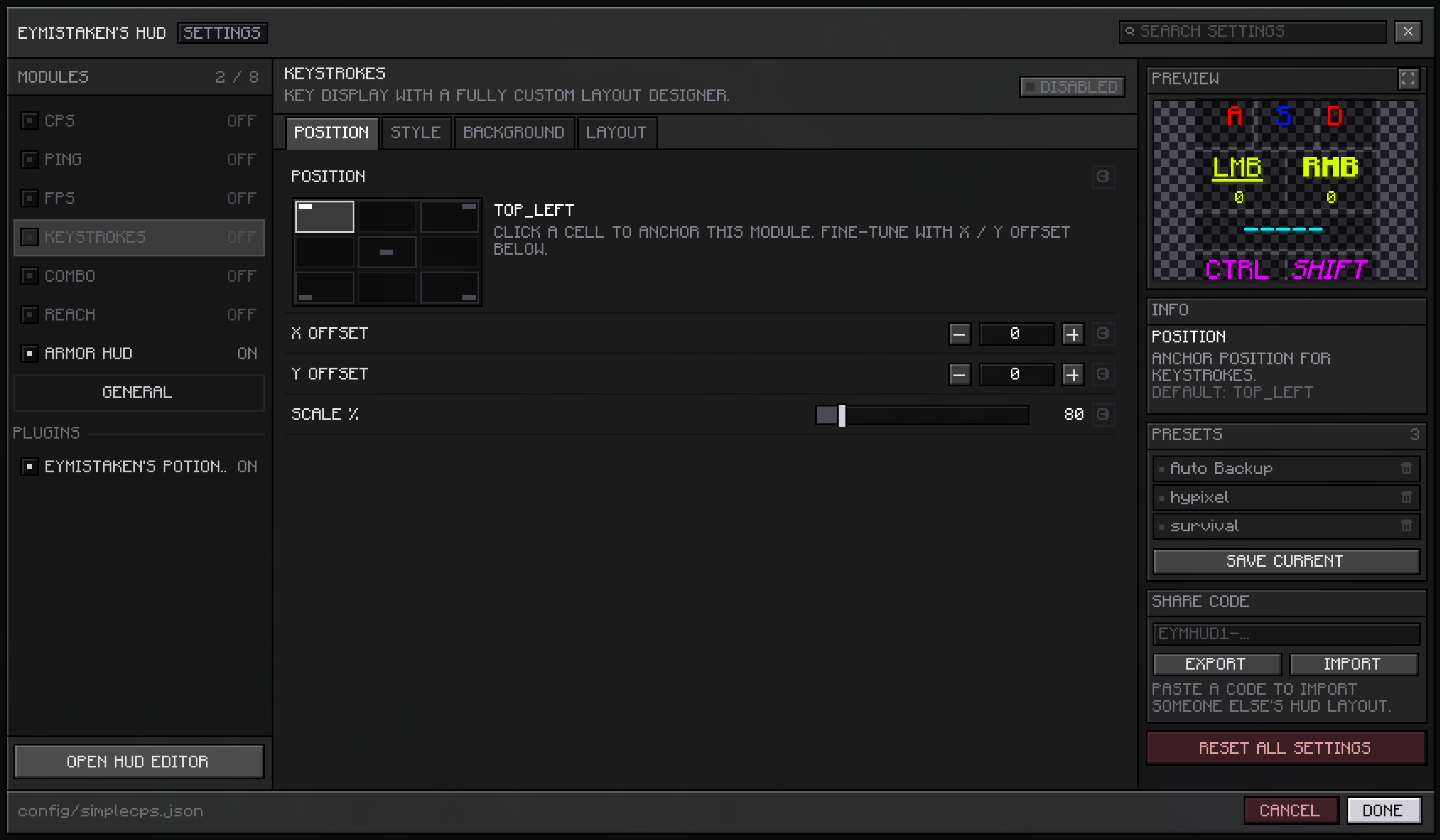
Open any module's page and the right-hand column leads with a **PREVIEW** card showing that module as it will really appear in game, at its real size. Change a colour, a scale, a background opacity or the text around a counter, and the card updates as you type.
The checkerboard behind it is deliberate. HUD modules are drawn over gameplay, so a flat dark panel would flatter every light colour and hide a low background opacity completely.
Modules that need data the game is not currently producing fall back to stand-in values — click rates, a ping reading, a combo streak, a set of armour and a weapon — so the card still shows something from the main menu with no world loaded.
> 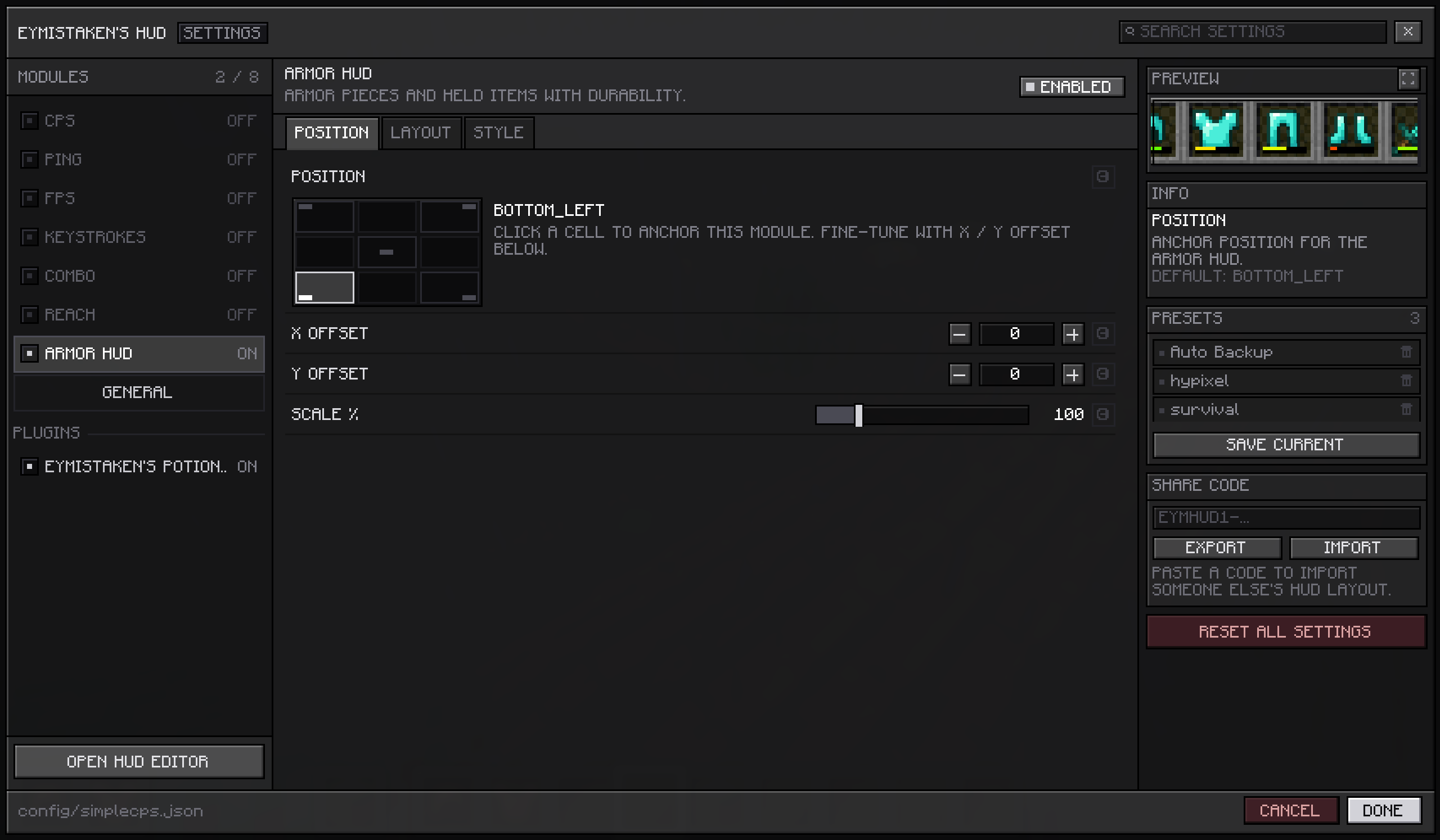
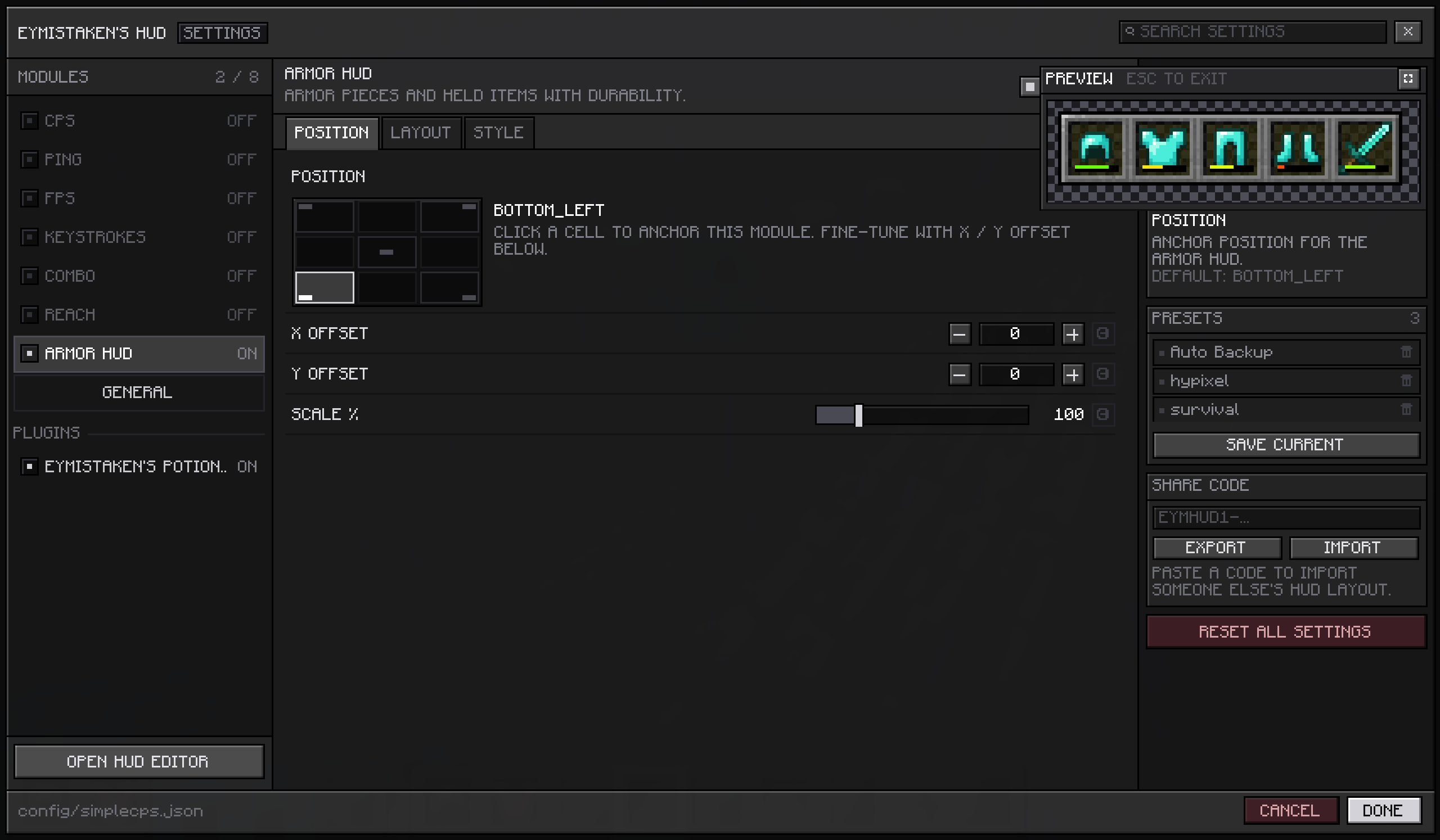
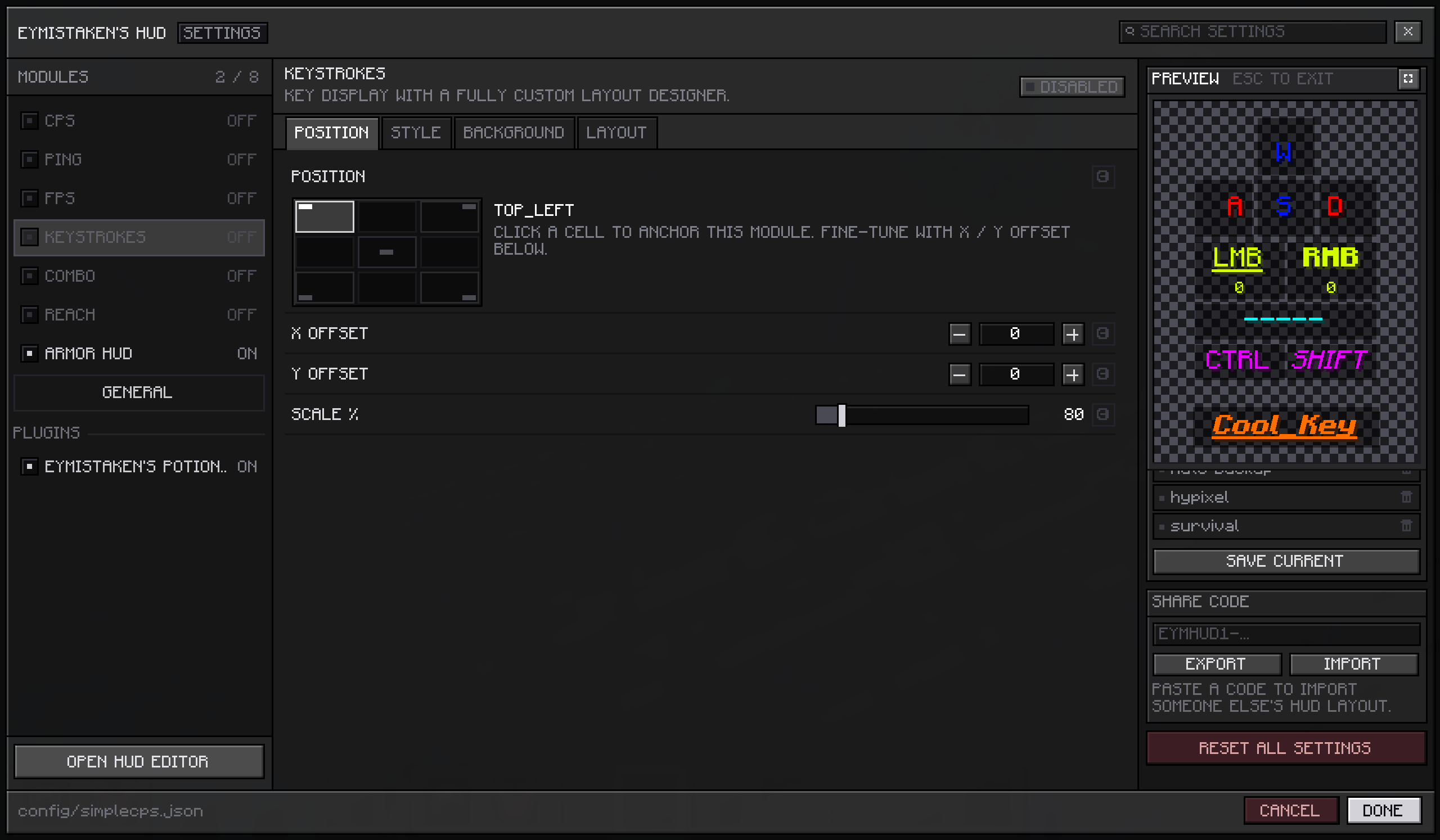
The card grows taller to fit its module but never wider, so a large module is cropped at the edges instead of spilling into the settings beside it. When that gets in the way, the button in the card's header expands the preview over the rest of the screen, far enough to hold the module with a little room around it — which is also how you judge how much space it will actually take. Escape or the same button closes it again, and nothing else on the page moves while it is open.
> 
## Fixes
The **Configs** and **Server Configs** lists in the HUD Editor no longer close while you are pointing at them. When neither side of the menu had room, the list opened on top of the menu itself, and moving onto it counted as hovering the row underneath.
## For developers
Modules can supply their own preview. Return a
HudPreview from getPreview() and the card draws whatever you give it; return nothing and no card appears at all. HudPreview.ofModule(this) covers the common case of the module drawing itself, with isPreviewing() as the hook for substituting stand-in data — it is set while your module is measured as well as drawn, so the card is sized for what it shows.Backwards compatible: existing plugins keep working unchanged and simply show no preview.
Full API documentation, with code examples: **https://eymistaken.github.io/Eymistaken-s-HUD-Website/api-guide.html**
their own. Nothing changes for players: a HUD built from the same modules looks and
behaves exactly as it did in 1.1.1-7.
Full reference: <https://eymistaken.github.io/Eymistaken-s-HUD-Website/api-guide.html>
## Tabs on a plugin module's settings page
HudModule.getSettingsTabs() returns a list of SettingsTab(id, name, settings), andeach entry becomes a tab on that module's page alongside the POSITION tab the screen
builds from the module's anchor, offsets and scale. It defaults to an empty list, so a
module that does not override it keeps the flat SETTINGS tab it has today, down to the
ids the screen uses to track per-row state.
Declaring tabs does not discard the two existing setting lists.
getContextMenuSettings()leads the first tab, which preserves the rule that everything on the editor's right-click
menu also appears on the page, and
getSettingsScreenSettings() becomes a trailingSETTINGS tab.
Tabs with nothing to show are dropped rather than drawn empty, and duplicate tab ids —
including a module claiming the reserved
pos or settings — are renumbered so no tabbecomes unselectable. A module that throws from
getSettingsTabs() or returns nullsfalls back to the flat layout instead of taking the settings screen down with it.
Opening a module's settings from the HUD editor previously looked for a tab literally
named
settings, which a module with its own tabs need not have; it now lands on thefirst non-placement tab. Built-in module pages are unaffected.
[Full documentation for every feature below lives on the website:](https://eymistaken.github.io/Eymistaken-s-HUD-Website/)
## A settings screen built for the HUD
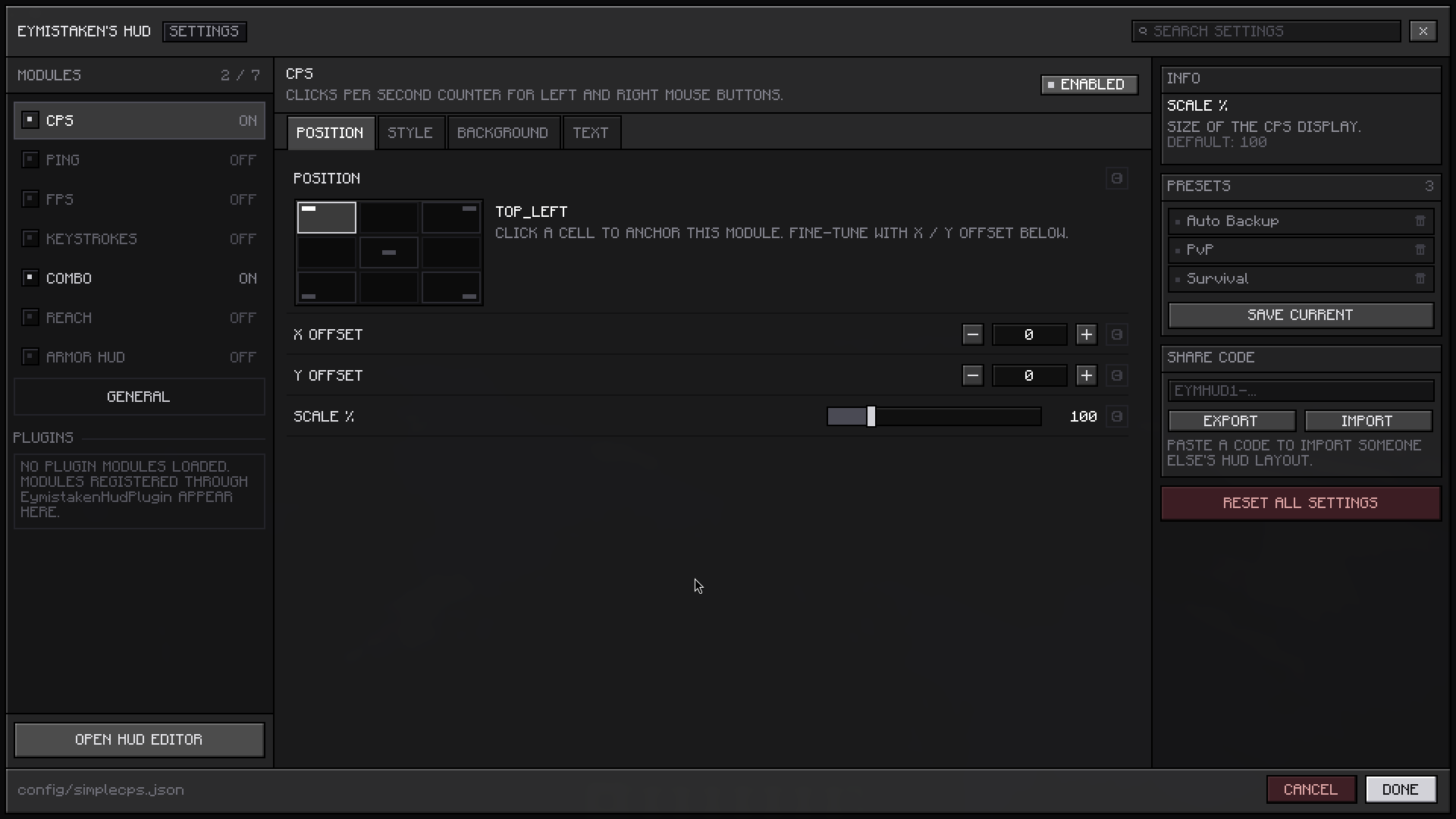
Open it from Mod Menu, or from inside the HUD Editor. Modules are listed down the left with their on/off state, each one's settings are grouped into tabs, and a search box across the top filters every setting in the mod at once.
Anchoring a module is now a three-by-three grid you click rather than a dropdown you cycle. Sliders drag, number fields accept typed values, and hovering any setting shows what it does and what its default is in the panel on the right. Every setting has a reset arrow that appears once you have changed it.
Presets, share codes and **Reset All Settings** sit in that same right-hand panel, so building a layout and saving it no longer means moving between two different screens.
Changes are saved as you make them; the **Cancel** button discards everything done since the screen was opened, after a confirmation. The screen stays the same physical size at any Minecraft GUI Scale, and **General → Display → Menu Scale** adjusts that size if you want it larger or smaller.
> 
## Picking colours
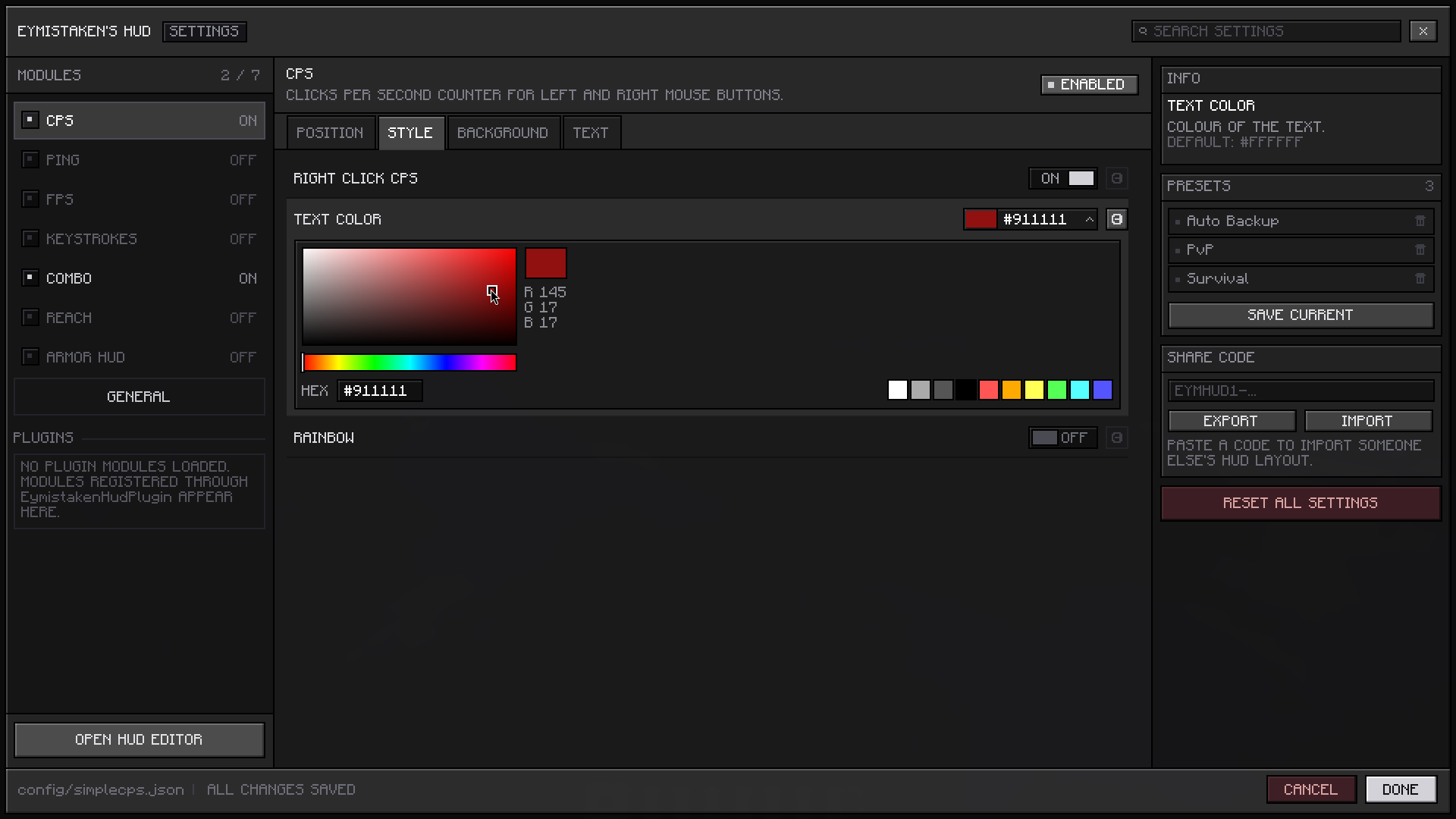
Colour settings open a picker directly in the row: a saturation and brightness square with a hue bar under it, a live preview with the red, green and blue values beside it, and the ten quick-pick colours below.
The hex field is click-to-copy — left-click copies the code to your clipboard and confirms it, right-click puts the cursor in the field so you can type or paste one.
> 
## Reaching settings from the editor
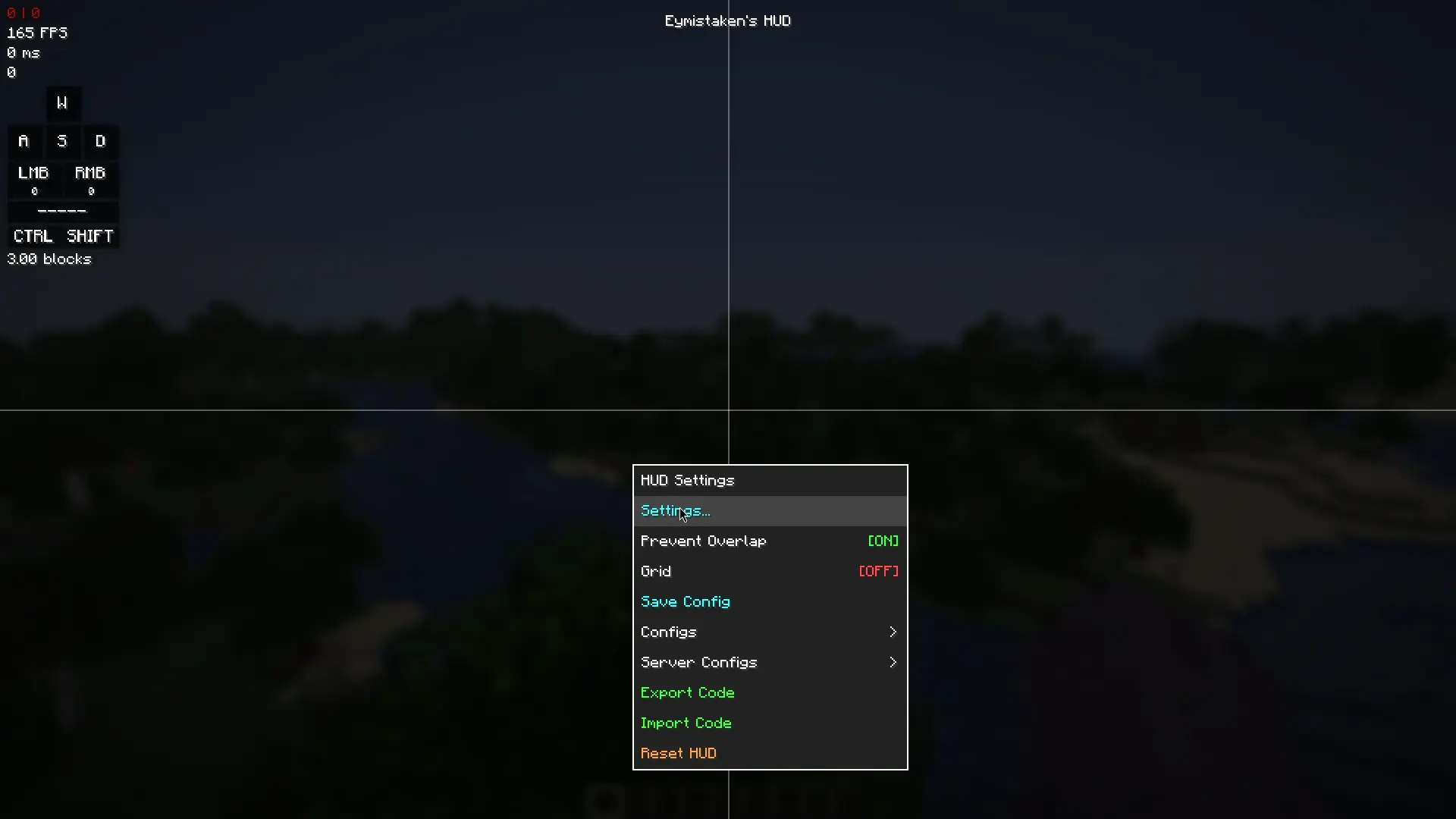
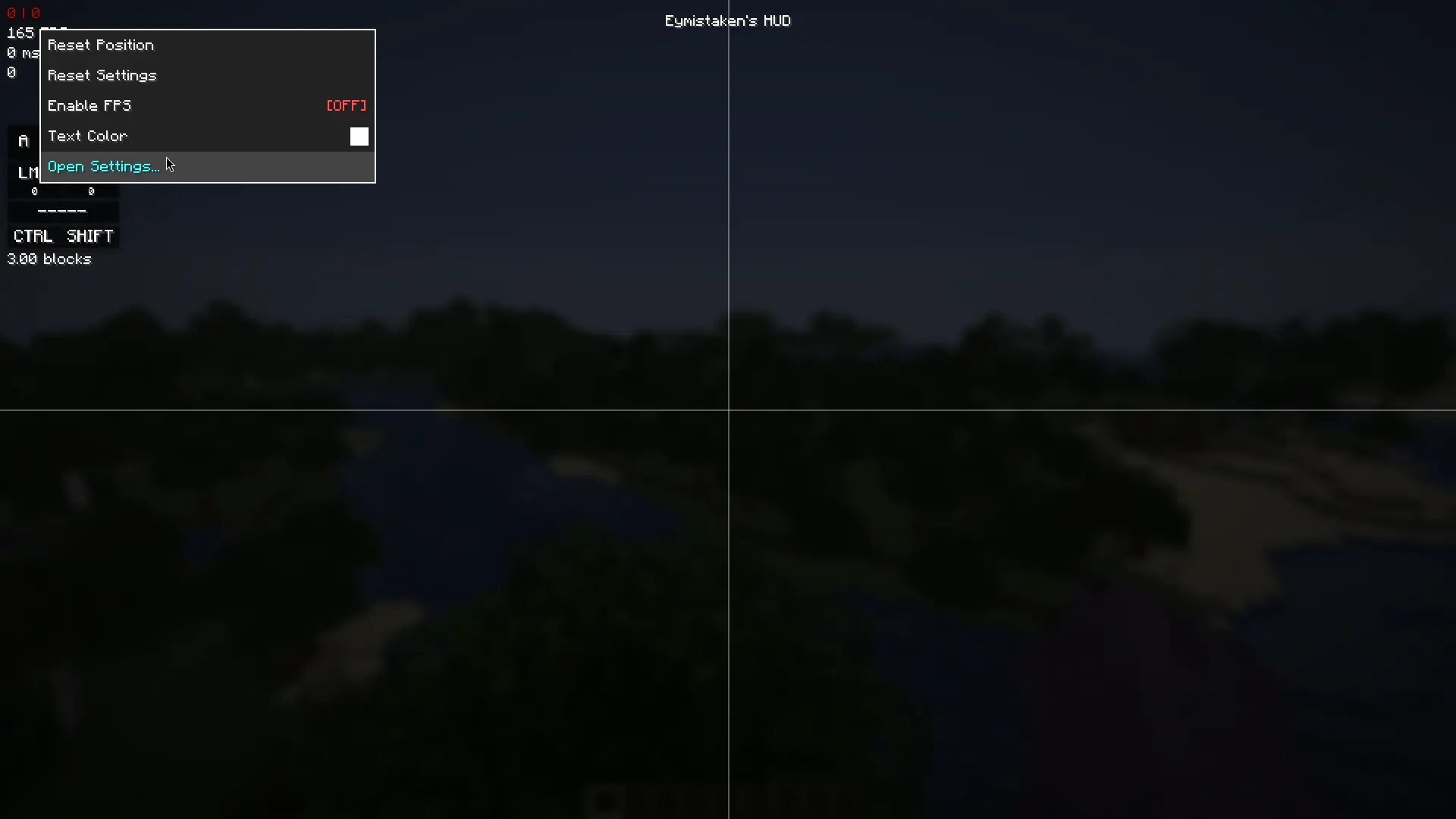
Right-clicking a module in the HUD Editor now offers **Open Settings** at the bottom of its menu, which goes straight to that module's page. Right-clicking empty space has a **Settings** entry that opens the screen itself.
## Settings that were not reachable before
- Prevent Overlap** and a **Reset HUD Layout** action are now in General → Editor alongside the grid options, rather than only in the editor's right-click menu. **Key Effect** for Keystrokes, which chooses between the squish and ripple press animations, has moved out of the Keystrokes Designer. Combo gained **Continue On Target Switch**, which decides whether your combo survives when you start hitting somethin
[**Full documentation for every feature below lives on the website**](https://eymistaken.github.io/Eymistaken-s-HUD-Website/)
## Share your setup
Your entire HUD — every module's position, size, colour and setting — can now be packed into one line of text and copied to your clipboard. Paste it into Discord, a forum post, or a message to a friend, and they get your exact layout back with a single click.
Right-click empty space in the HUD Editor for **Export Code** and **Import Code**. The Keystrokes Designer has its own **Export Layout** and **Import Layout** if you only want to share your key layout without the rest of your HUD.
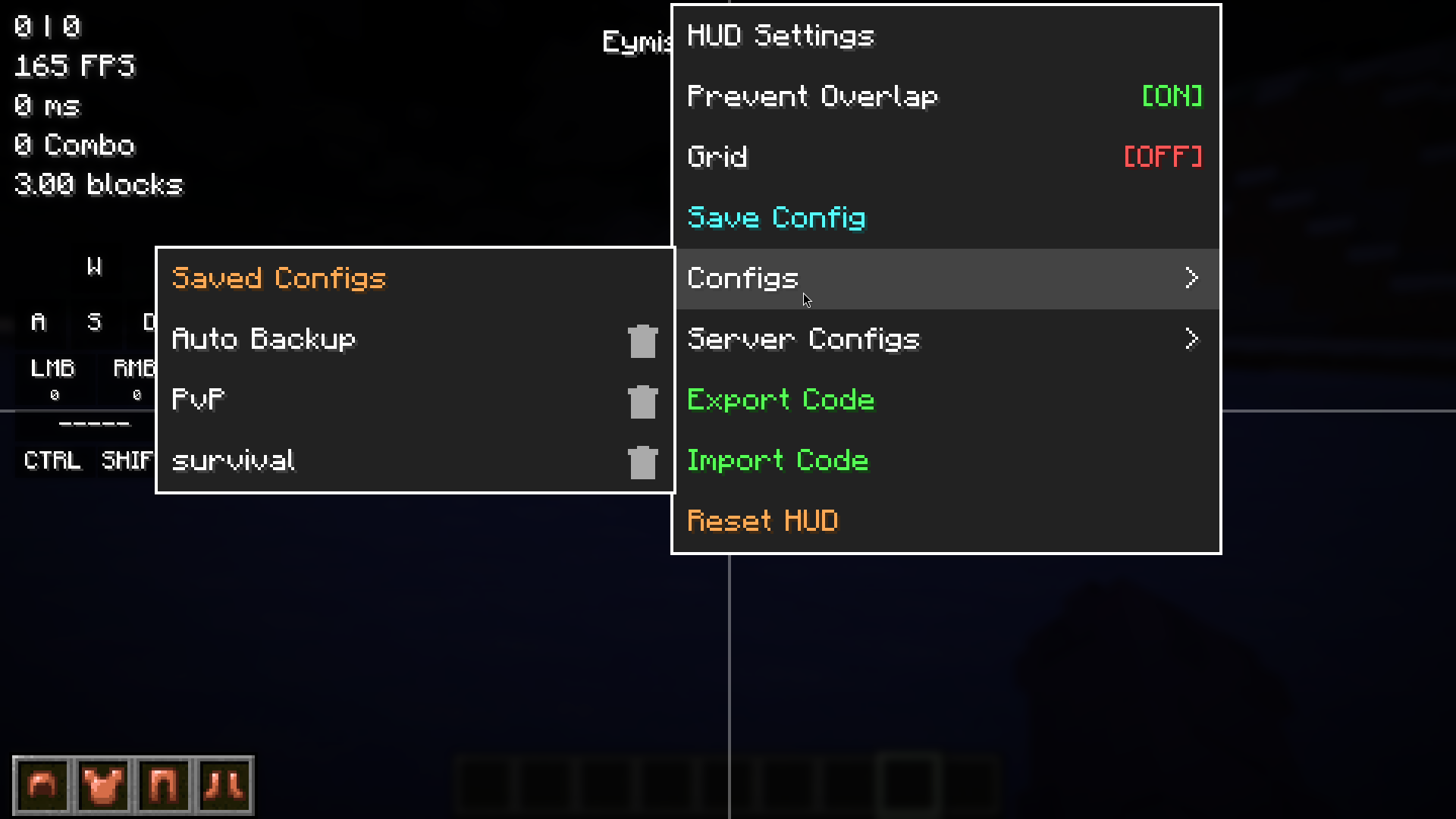
Importing never loses what you had: your current setup is saved as a backup config first, so a layout you did not end up liking is one click away from being undone. Codes made with a different version of the mod still work, and a code from someone running an addon module you do not have imports cleanly.
You can also keep as many named setups as you like. **Save Config** takes a snapshot, and the **Configs** list lets you load, rename or delete them at any time.
> 
## A different HUD for every server
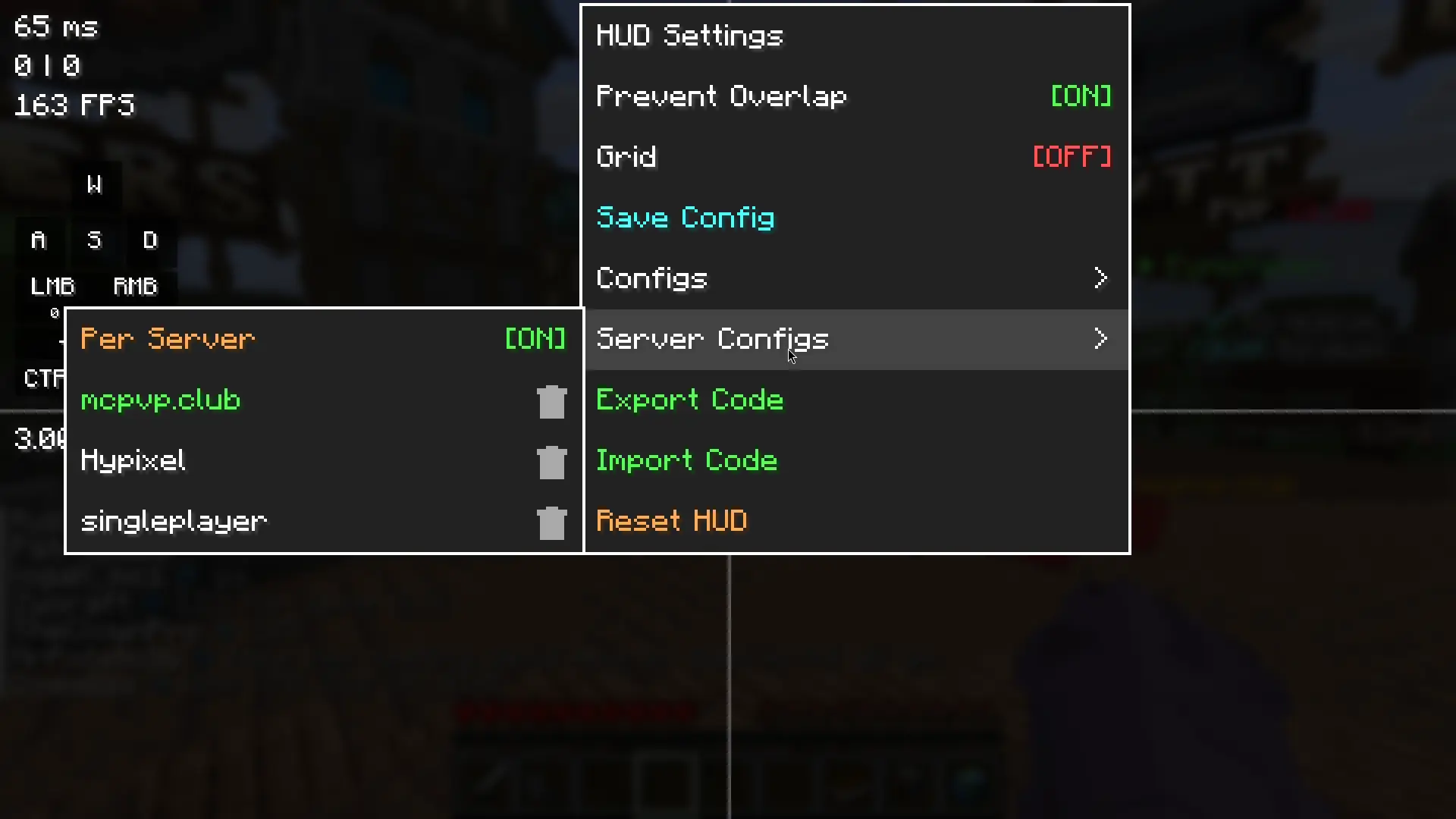
Switch this on and your HUD quietly follows the server you are playing on. Build a compact layout for one server, a full one for another, and each comes back on its own the next time you join. Single-player worlds share one profile.
There is nothing to press and nothing to remember. Whatever your HUD looks like on a server is simply kept for it. If you want to reuse a layout somewhere else, the **Server Configs** list lets you pick any server's setup and apply it where you are — useful for carrying your PvP layout onto a new server.
The server you are currently on is highlighted in the list, and you can give any of them a friendlier name than its raw address.
> 
## Real editing tools
The HUD Editor grew up. Drag a box across empty space to select several modules at once, then line them up properly:
- Align** the selection to its left, right, top or bottom edge, or match their horizontal or vertical centres
- Distribute** three or more modules so the gaps between them are even
There is also an optional grid you can snap to, with a spacing you choose, and arrow keys nudge a selection one pixel at a time when you need to be exact. Holding Shift while dragging turns snapping off entirely for free placement.
Snapping itself feels completely different now. Modules glide into position instead of jumping, while dragging stays perfectly one-to-one with you
...
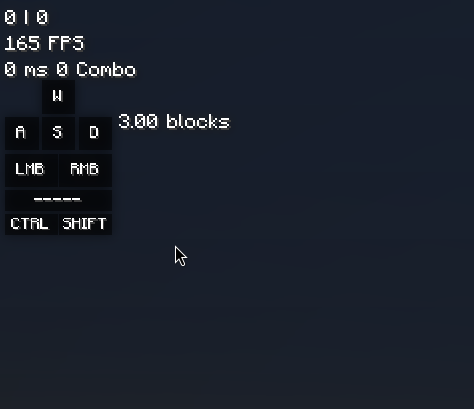
The elements on the HUD now relocates themselves automatically. This should be a huge upgrade for the people who struggles while trying to locate the elements on the HUD Editor Screen.
The core experience is the same. The mod is useable with both Vulkan and OpenGL.
And there is no change with API.
# Fixed:
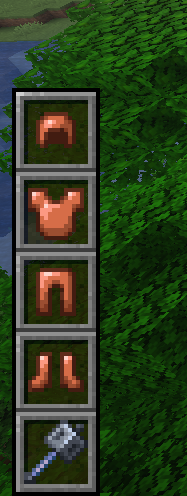
The issue of unsightly lines appearing on the right side of the Armor HUD when in vertical mode has been resolved.
# Armor HUD is much more flexible now
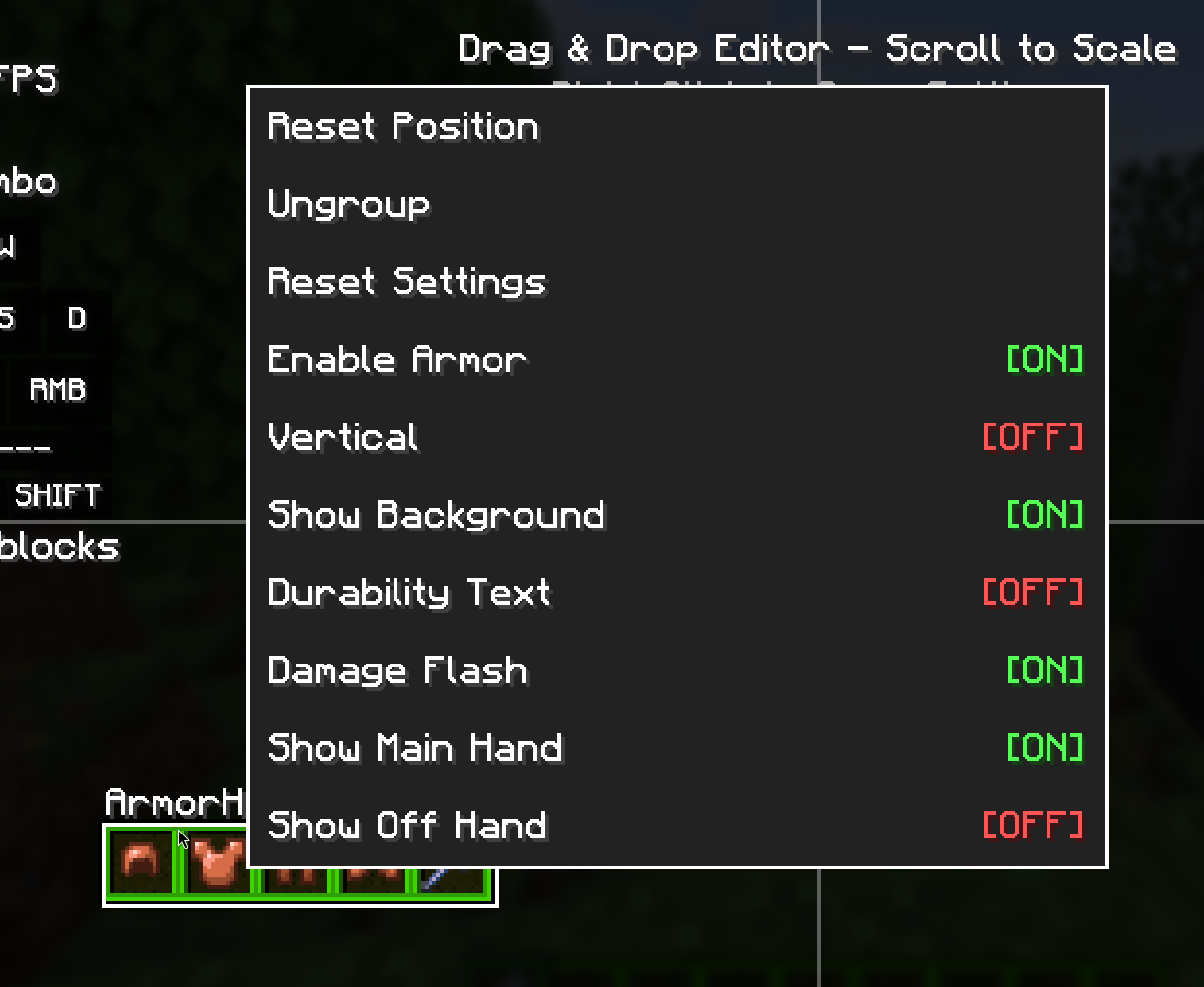
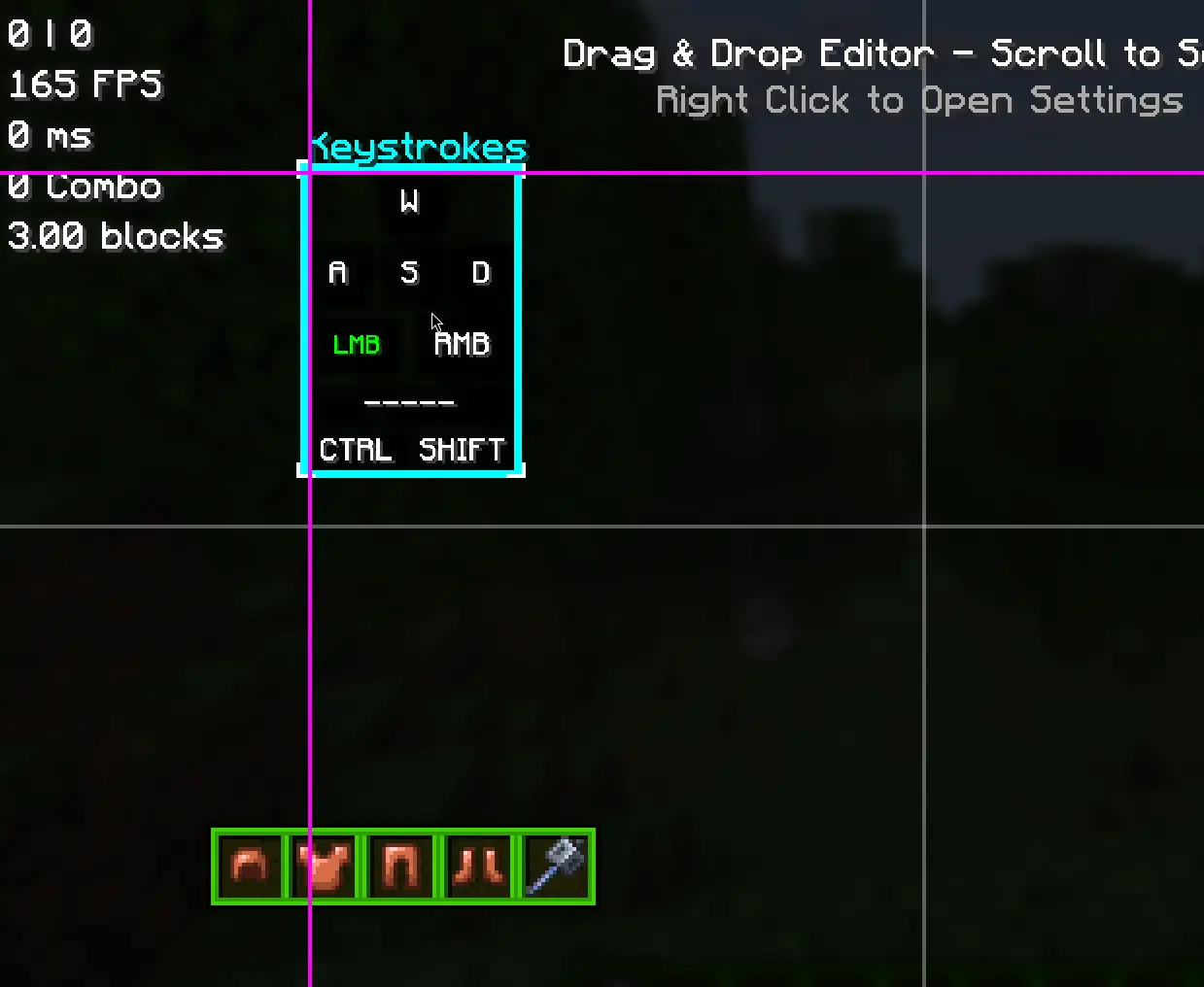
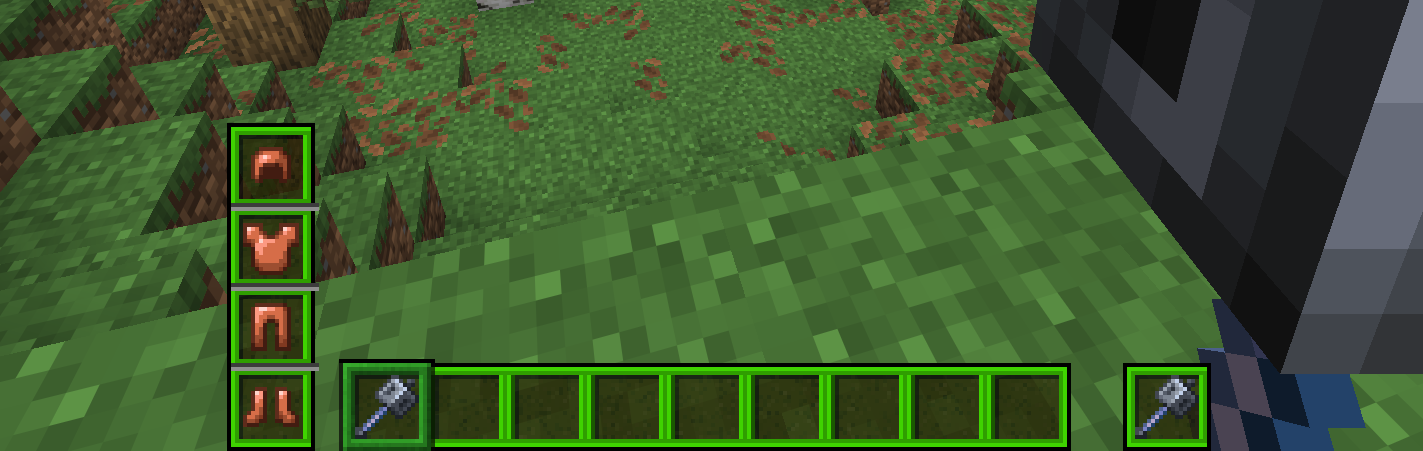
Now you can completely ungroup the armor hud, and place the elements separately anywhere you want.
Also, as you can see on the images, Armor HUD now supports different texture packs. (The texture pack on the image is created by Pyxell, [check here](https://www.planetminecraft.com/texture-pack/green-gui-6417637/))
You can choose multiple elements at once now. Like using a computer.
HUD Editor Screen now supports magnet snapping, which is included in the Keystrokes Designer Screen since v1.0.8.
## API
There are many changes with API. [See the changes here.](https://eymistaken.github.io/Eymistaken-s-HUD-Website/api-guide.html)
and that's all...


